Authentication
All Fuzz Energy API endpoints require authentication. The platform uses OAuth 2.0 with the Client Credentials grant type, built on top of the OpenID Connect (OIDC) standard.
OAuth 2.0 Client Credentials Flow
The Client Credentials flow is designed for machine-to-machine communication. In this model, a client application (not a human user) authenticates with the Fuzz Energy authorization server to obtain an access token, which is then used to call the API.
The flow works as follows:
- The client application sends its Client ID and Client Secret to the Fuzz Energy token endpoint.
- The authorization server validates the credentials and returns a JWT (JSON Web Token).
- The client includes this JWT in the
Authorizationheader of subsequent API requests.
Creating an OAuth 2.0 Application
To interact with the Fuzz Energy API, you first need to register an application. Applications are typically created at the Company level, since a company is the entity that owns or manages the integration.
Example Scenario
Imagine ACME Corp, a parking management company. They want their core business application to be able to start and stop charging sessions on charge points managed by Fuzz Energy. To achieve this, ACME Corp needs to:
- Create an OAuth 2.0 application in the Fuzz Console.
- Use the resulting Client ID and Client Secret to obtain access tokens.
- Call the Fuzz Energy API on behalf of their application.
Step-by-Step Guide
1. Navigate to Your Company
Log in to the Fuzz Console and navigate to the company that will own the application.
2. Open the Applications Page
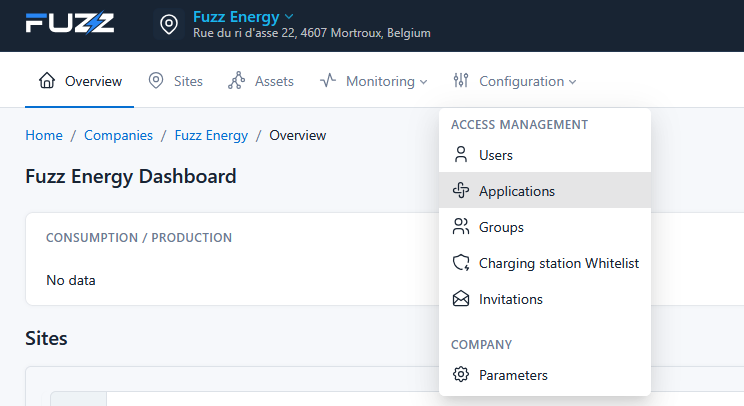
From the company view, go to Configuration > Applications in the navigation menu.
3. Create a New Application
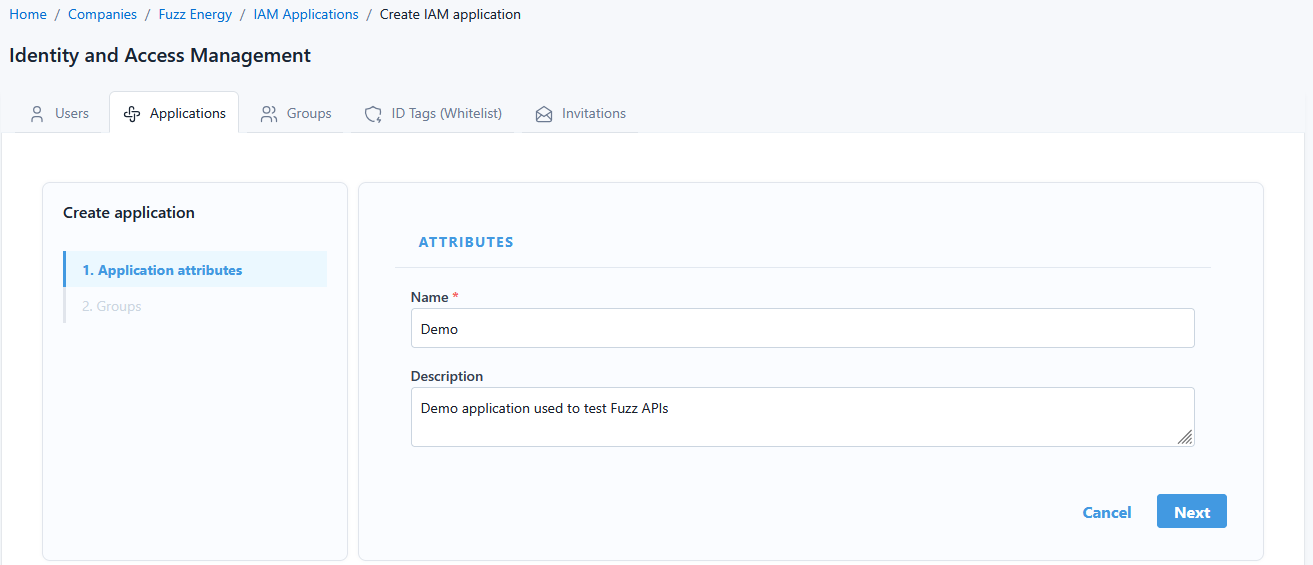
Click the button to create a new application and fill in the required details (e.g., application name, description).
4. Assign Permissions via Groups
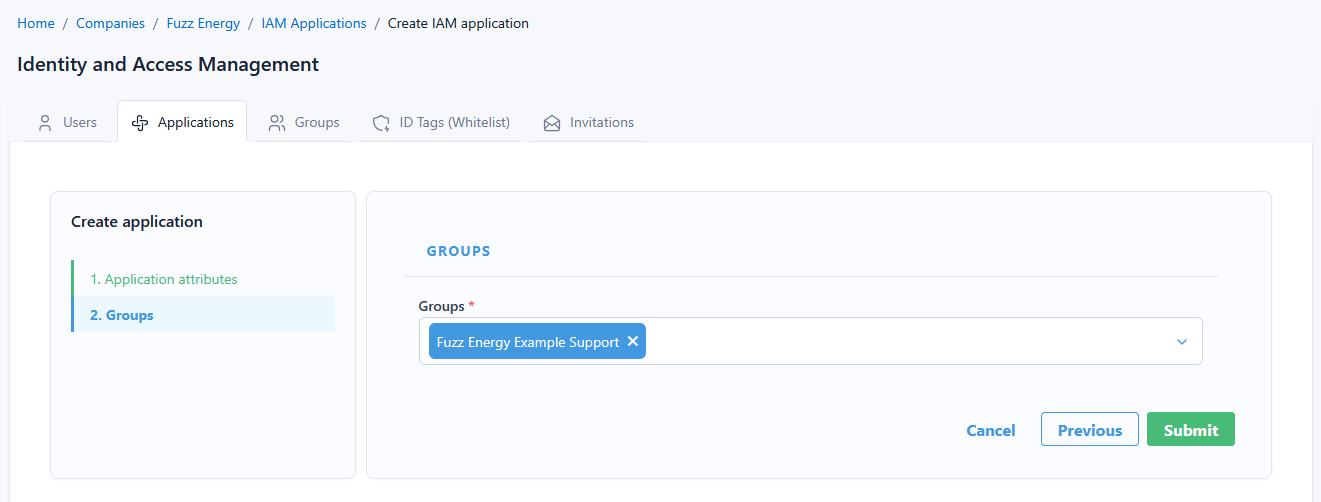
During or after creation, you can control what the application is allowed to do by adding it to groups. Groups define permission scopes over specific resources.
For example, if you want the application to perform all actions on the site "PowerEnergy Ltd", add the application to the "PowerEnergy Ltd Administrators" group.
Tip: Permissions are inherited through the tenant hierarchy. An application added to a company-level group will typically have access to all sites under that company.
5. Retrieve Client ID and Client Secret
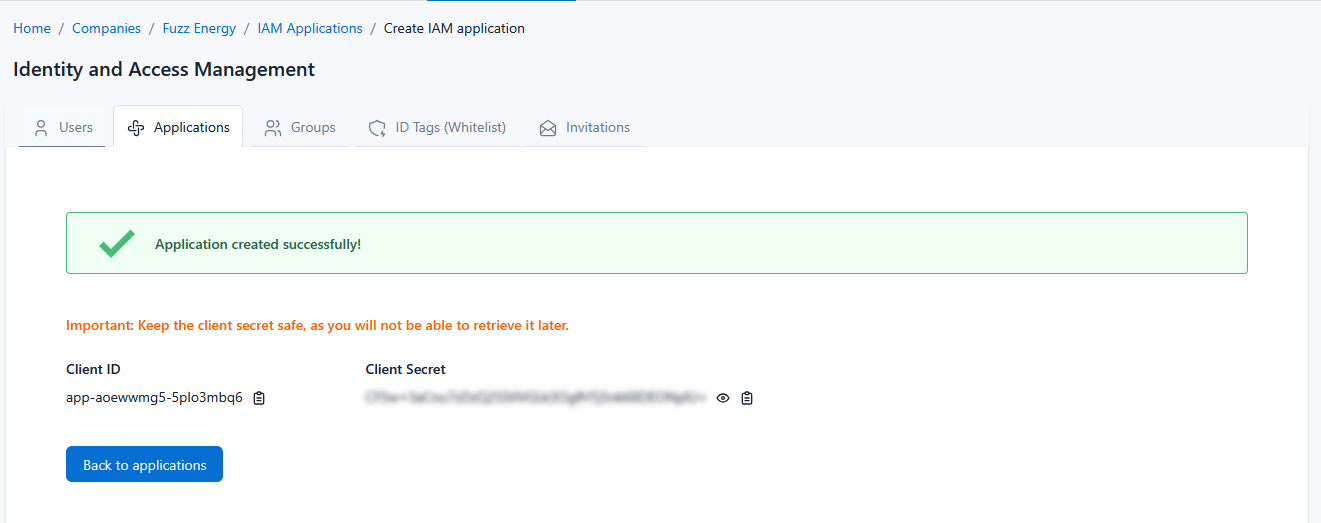
Once the application is created, you will receive a Client ID and a Client Secret. Store these credentials securely - you will need them to request access tokens.
Obtaining an Access Token
To obtain a JWT access token, send a POST request to the token endpoint:
POST https://auth.fuzz.energy/oauth2/token
Content-Type: application/x-www-form-urlencoded

grant_type=client_credentials
&client_id=YOUR_CLIENT_ID
&client_secret=YOUR_CLIENT_SECRET
Passing Client Credentials
The Client ID and Client Secret can be provided in two ways:
Option 1: In the Request Body (shown above)
Include client_id and client_secret as form-encoded parameters in the request body alongside grant_type.
Option 2: Via HTTP Basic Authentication
Encode the credentials in the Authorization header using HTTP Basic Authentication. In this case, the client_id is the username and the client_secret is the password:
POST https://auth.fuzz.energy/oauth2/token
Content-Type: application/x-www-form-urlencoded
Authorization: Basic base64(YOUR_CLIENT_ID:YOUR_CLIENT_SECRET)

grant_type=client_credentials
Note: Both methods are equivalent. Choose the one that best fits your HTTP client or framework.
Important: Do not include a
scopeparameter in your token request. The scopes are automatically determined by the groups your application belongs to.
On success, the response will contain a JWT:
{
  "access_token": "eyJhbGciOiJSUzI1NiIsInR5cCI6IkpXVCJ9...",
  "token_type": "Bearer",
  "expires_in": 900
}
Token Lifetime
Access tokens have a validity period of 15 minutes (900 seconds). After expiration, you must request a new token using the same Client ID and Client Secret.
Recommendation: Implement token caching in your application to avoid requesting a new token on every API call. Request a fresh token only when the current one is close to expiring or has already expired.
Using the Token
Include the access token in the Authorization header of every API request:
GET /charge-points
Host: api.fuzz.energy
Authorization: Bearer eyJhbGciOiJSUzI1NiIsInR5cCI6IkpXVCJ9...
If the token is missing, invalid, or expired, the API will respond with a 401 Unauthorized status code.