🖥️ Open the web interface of an asset remotely
Many assets (charge points, inverters, data managers, meters, batteries) have a local web page for configuration and diagnostics, accessible only from the site network. Fuzz lets you open it from the Console, from anywhere, without a VPN and without opening a port on the customer's network: the page goes through the secure connection that the controller (or the gateway) maintains with Fuzz (Fuzz Secure Link).
You first need to enter the address of the web page in the asset form, then open it from the asset page.
✅ Prerequisites
| Item | Required |
|---|---|
| Hosting mode | Edge (the controller relays the page) or Hybrid (the gateway relays the page). Not available on a Cloud site: no Fuzz hardware is on site to reach the asset |
| Controller or gateway | Online |
| Asset | A web interface reachable from the controller or the gateway, at a fixed IP address (otherwise the saved address no longer matches) |
| Role to configure | Administrator or Operator of the site (editing the asset) |
| Role to open | Any user who sees the asset in the Console |
The login and password of the asset's web page remain those of the manufacturer: Fuzz does not know them and does not fill them in.
1. Enter the address of the asset's web page
- Open the site, Assets, then the asset, and click Edit configuration (or Modify this asset from the Topology page).
- Go to the Console step of the form.
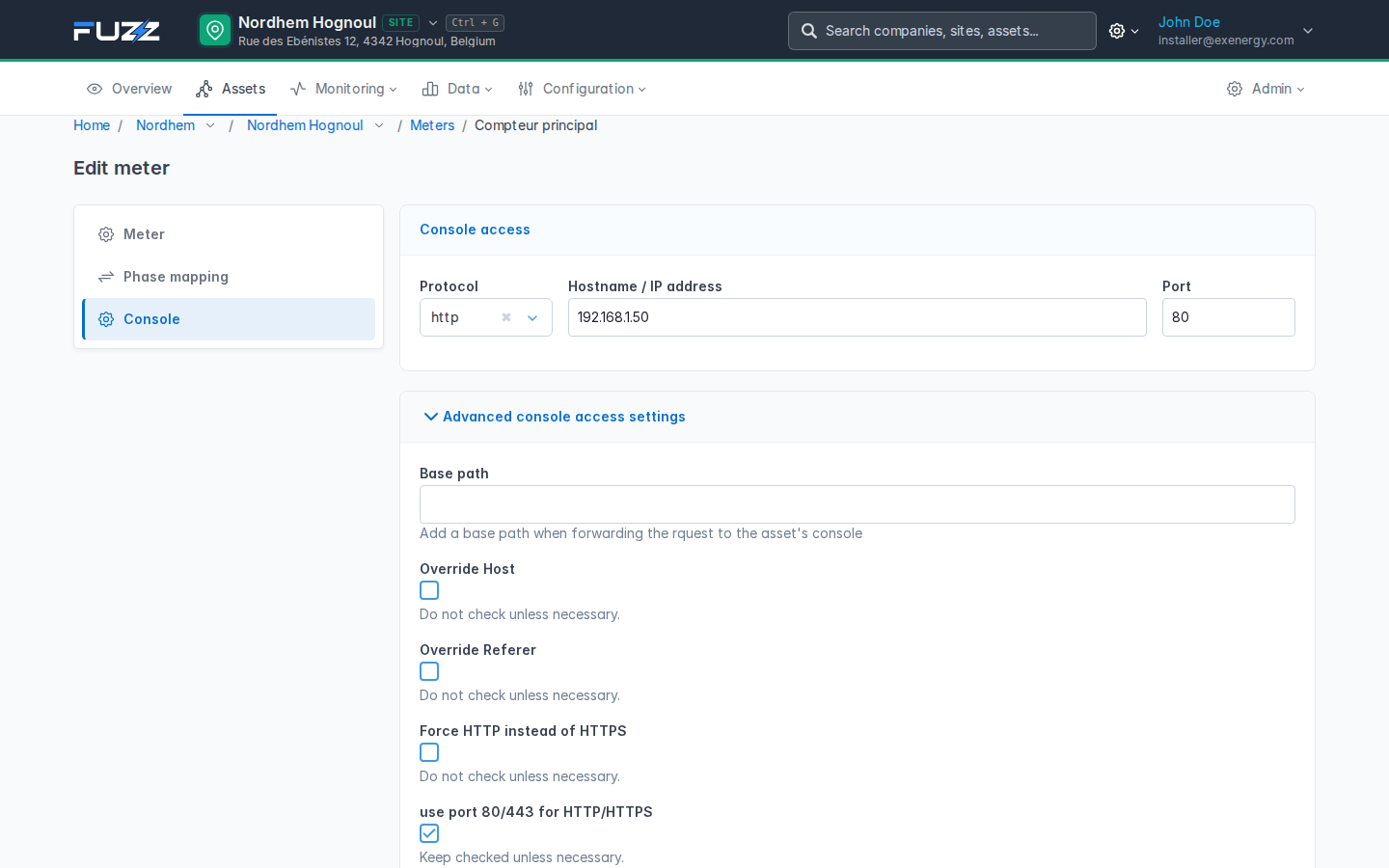
- In the Console access card, fill in:
| Field | Meaning | Example |
|---|---|---|
| Protocol | http or https, depending on the address of the asset's web page | http |
| Hostname / IP address | Fixed IP address of the asset on the site network | 192.168.1.50 |
| Port | Port of the asset's web page: generally 80 for http, 443 for https | 80 |
- Click Submit.
The collapsible Advanced console access settings card is only useful if the page displays badly. Each option carries the note "Do not check unless necessary"; keep the default values:
| Option | Purpose | Default |
|---|---|---|
| Base path | Path added to the address, for a web page that does not start at the root (for example /admin) | empty |
| Override Host | Makes the asset believe it is called under the name of the Fuzz page; for some interfaces that refuse an unexpected host name | Unticked |
| Override Referer | Same principle for the Referer header | Unticked |
| Force HTTP instead of HTTPS | Opens the Fuzz page in http instead of https | Unticked |
| use port 80/443 for HTTP/HTTPS | Uses the standard ports for the Fuzz page; "Keep checked unless necessary" | Ticked |
2. Open the web page from the Console
Once the address is saved, three paths open the page:
- Console tab of the asset page: the text "Click on the button below to open a secure tunnel to access the device console" is displayed; click Open Secure Tunnel.
- Asset list: Assets, State tab, Console column, Open console icon on the asset's row.
- For a charge point: Charge point actions, Access section, Open charge point web console.
The asset's web page opens in a new browser tab, at a secure Fuzz address. Log in with the asset's credentials. The Console tab and the Console column only appear for assets whose address is filled in.
The charge point case: the console is that of the station
For a charge point, the web page is that of the box (the station), shared by its connectors. Fuzz opens the address entered in the Console access card of the station (station window: Name, Serial number, CPO Station ID, Authorizer / CPO, then Console access). The Open charge point web console action only appears if this address is filled in on the station.
The Console tab of a charge point, for its part, only appears if the Console step of the charge point is also filled in. For all paths to work, enter the same address on the station and on the charge point.
🛠️ Common remote access problems
| Symptom | Probable cause | Solution |
|---|---|---|
| No Console tab or icon in the Console column | Address not filled in at the Console step | Fill in Hostname / IP address |
| The new tab loads nothing or shows an error | Asset switched off, wrong address or port, controller or gateway offline | Check the IP address and port from the site (Network diagnostics > Test remote connectivity of the installer menu); check that the site is online |
| The page displays without formatting, or redirects to a local address | Web interface that uses absolute links or checks the host name | Try Override Host, then Override Referer, or a Base path |
| Wrong protocol (https page seen as http) | Wrong Protocol | Set the protocol of the asset's page (https for a secure page) |
Hybrid site: saving refused with invalid console host | Invalid address | Enter a valid IPv4 address or host name (see The gateway of a Hybrid site) |
| Hybrid site: the page does not open | Gateway firewall | The address and port must be those saved on the asset (see Gateway firewall) |
Remote access is not available for a web page outside the site network, nor on a Cloud site.